
Guides → How-to
How to unzip files in Google Drive
Google Drive can store a zip file and it also lets you look inside it, but it can’t simply unzip it. To unzip files in Google Drive, you can use a tool that extracts the zip straight into a Drive folder, or download it, unzip it on your computer and upload the folders again to carry on with your work in Drive.

On this page · 6 sections
I watched my colleagues repeat the same chore for years: download the zip, unzip it, rebuild the folders, upload it all again. Here are all three ways, and what each one is good and bad at.
| Way | Best for | Keeps folders | Zip already in Drive? |
|---|---|---|---|
| 1. A Chrome extension (thefilosphere) | Big zips, many folders, doing it often | Yes | Yes, pick it in Drive |
| 2. A Drive add-on (ZIP Extractor) | A quick one-off | Yes | Yes |
| 3. Unzip on your computer, then upload | No tools to install | Only with Folder upload | Download it first |
Way 1: Use a Chrome extension to extract a zip straight into a Drive folder
This is the tool I built after one too many rounds of that download, unzip, upload loop.
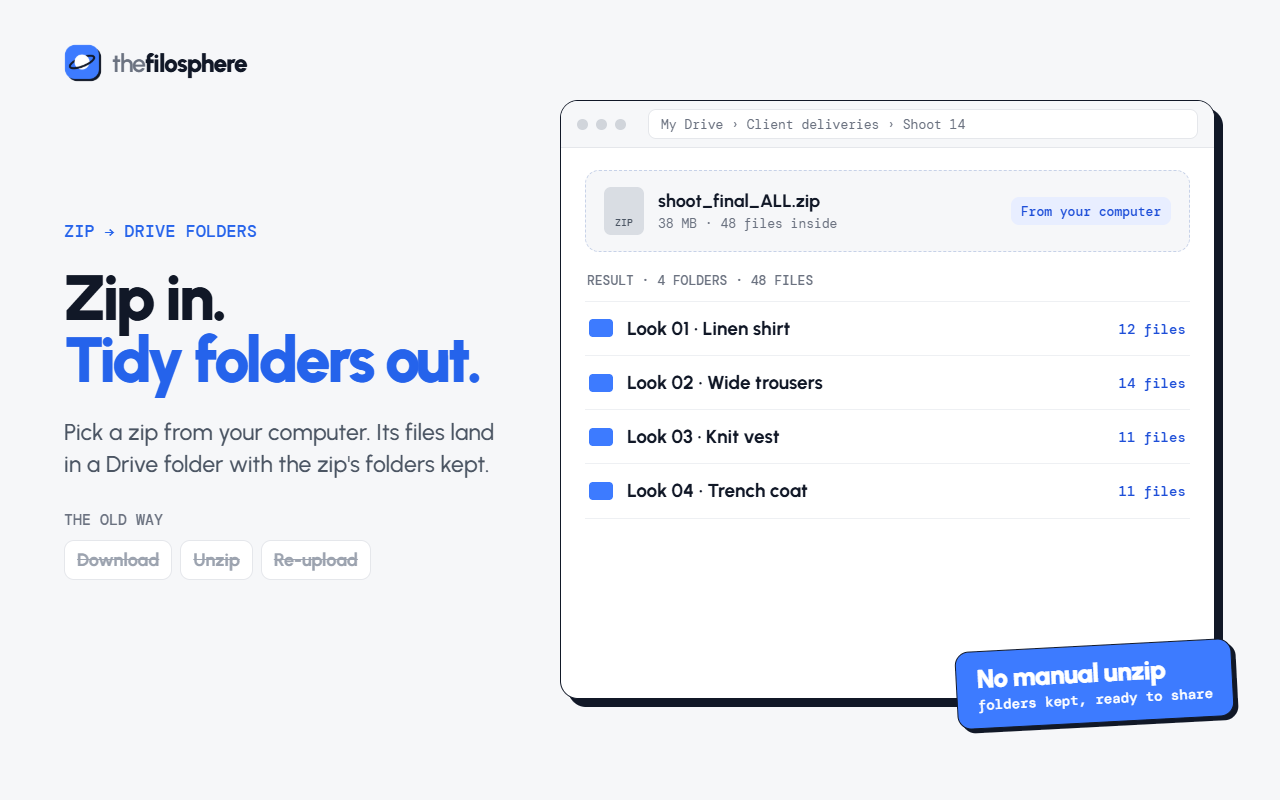
- Add thefilosphere extension to Chrome and click its icon. It opens in Chrome’s side panel, next to your Google Drive.
- In the Unzip & organize tool, you can either drop a zip file in from your computer or select a zip file that’s already in your Drive by clicking on “Pick a zip in Drive”.
- Decide where the files go: a new folder in My Drive, or an existing Drive folder.
- Click Preview to check every folder and file count. Nothing uploads until you confirm. We call this “Dry Run” view because it really helps you know what the next click is going to do, especially when you are working with big or heavy zip files.
- Click Upload. The files land in Drive in the same folders the zip had.
What it takes care of:
- Folders: kept as the zip had them, or flattened into one folder if you’d rather.
- Password zips: type the password in the panel. It stays on your computer.
- Big zips: if your connection drops, the upload pauses and carries on where it stopped. Close the panel and come back, and a zip from Drive carries on when you press Resume; a zip from your computer carries on once you choose it again.
- Order: files are sorted the way people count, so IMG_2 comes before IMG_10.
- Repeats: if files from an earlier thefilosphere upload are already in the folder, skip them or keep both.
- Formats: convert images to WEBP, PNG or JPG on the way in, including iPhone HEIC photos.
- Mistakes: one click moves the whole batch to Drive’s trash, for up to 7 days after.
The zip is unpacked in your browser. Files travel between your browser and Google, never through our servers, and thefilosphere extension sees only the zip you pick, not the rest of your Drive.
Limits: it works in Google Chrome on a laptop or desktop, not on a phone. Zip files only, not RAR or 7z.
“I can't believe I can do all the time consuming & manual bulk tasks in just few clicks! I literally unzipped a folder with 200 files straight into my Google Drive without even downloading it. This is seriously soo helpful for those who daily work with Google Drive!”
 Adnan Samol27 Oct 2026 · Chrome Web Store
Try it
Unzip into Drive, folders intact. First 10 runs free, then $15 once.
Way 2: Use a Drive add-on (ZIP Extractor)
ZIP Extractor is a free web app that opens a zip that’s already in your Drive.
- In Drive, right-click the zip and choose Open with → ZIP Extractor. If it isn’t listed, choose Connect more apps and install it.
- Allow it access to your Google Drive.
- Choose the files you want to extract and click “Extract to Drive”. They’re saved in a new Drive folder ending in “(Unzipped Files)”.
Good at: quick one-off zips. It also opens password-protected files and RAR, 7z and TAR archives, and the extraction happens in your browser.
Watch out for: several reviews say it gets slow with large archives.
thefilosphere vs ZIP Extractor →
Way 3: Unzip on your computer, then upload
This is the classic manual way.
- In your Google Drive, right-click the zip you want to extract and click on “Download”.
- Unzip it on your computer. On Windows, right-click it and choose “Extract All”. On a Mac, double-click it.
- Back in Drive, choose New → Folder upload and pick the unzipped folder.
Good: nothing to install.
Bad: every file is handled twice, a dropped connection means starting the upload over, and with hundreds of files it’s easy to upload into the wrong place.
Why Google Drive can’t unzip files itself
Drive can show you the list of files inside a zip. It can’t take them out.
To Google Drive, a zip is one file, and it stays one file.
That’s why the usual fix is the long one, Way 3. Way 1 and Way 2 do the unzipping in your browser and put the files straight into Drive.
On a phone?
Chrome extensions don’t run on phones, and the Google Drive app can’t open zips either.
- iPhone or iPad: in the Drive app, tap ⋮ on the zip, then Open in → Save to Files. Tap the zip in the Files app to unzip it.
- Android: download the zip, open it in the Files by Google app and tap Extract.
Getting the files back into Drive with their folders is far easier on a computer.
Questions
Can I unzip a file in Google Drive?
Not with Google Drive alone. It shows what’s in a zip but can’t unzip it. With a tool, yes: thefilosphere (Way 1) or ZIP Extractor (Way 2) unzips it straight into a Drive folder. Without one, you unzip it on your computer and upload the folders again.
Can I unzip a file in Google Drive without downloading it?
Yes. In thefilosphere, pick the zip in Drive. It’s unpacked in your browser and the files go into the Google Drive folder you choose, with nothing saved to your computer.
How do I unzip a large zip into Google Drive?
Use a tool that uploads file by file and can resume, so a dropped connection doesn’t send you back to the start. thefilosphere does both. The speed depends on your internet connection, because the files still travel to Google.
Does unzipping into Drive keep the folder structure?
With Way 1 and Way 2, yes. In thefilosphere you can also flatten everything into one folder. With Way 3, only if you upload the whole folder with Folder upload instead of selecting the files inside it.
Why can’t I open a zip file in Google Drive?
Drive can preview the list of files in a zip, but it can’t extract them. If even the preview fails, the zip may be too large, password-protected or damaged.
Is it safe to unzip files with a Drive tool?
Check what access it asks for. thefilosphere uses Google’s narrowest Drive permission: it sees only the files you pick and the ones it creates.
Do my files go through your servers?
No. The zip is unpacked on your computer and the files go straight from your browser to your Google Drive. There is no thefilosphere server in between.
What happens if my connection drops halfway?
The upload pauses and keeps its place, then carries on by itself when you are back online. Files that already uploaded are not uploaded again.
Can it open a password-protected zip?
Yes. Type the password when the panel asks, and the files unpack into Drive as usual. The password never leaves your computer.