
Guides → Fixes
Google Drive “Zip failed”: why it happens and how to fix it
Google Drive says “Zip failed” when it can’t pack your folder into a zip before the download starts. For a small folder, try again with fewer files. For a big or shared folder, the reliable fix is to skip the zip and download the files one by one.

On this page · 9 sections
Drive never sends a folder as it is. It packs everything into a zip on Google’s side first, like packing a suitcase before handing it over. The more you put in, the longer the packing takes, and the more ways it can go wrong.
We tested it
We downloaded a 230-file, 2.5 GB folder with Drive’s own Download button. Twice.
| What happened | |
|---|---|
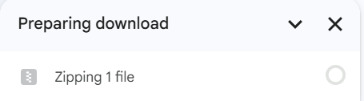
| Drive’s panel said | “Zipping 1 file”. The folder had 230. |
| Zipping took | 2 min 12 s, then 1 min 26 s, before anything saved |
| First zip | 1.94 GB, right at Drive’s limit of about 2 GB |
| Second zip | Never arrived, both times, with no error. Missing from our download: our biggest file, a 700 MB video. |
What worked: reload the Drive page, then download the missing folder on its own.
Drive didn’t say a thing. If we hadn’t counted, we’d never have known.
Chrome on Windows 11, 6 November 2026.
After a big download, check what you got. Unzip every part and check each subfolder is there. Start with the biggest files. That’s what went missing for us.
Why Google Drive says “Zip failed”
Most Google Drive zip failed download errors come down to one of four causes.
- The folder is big. Drive splits large downloads into several zips of up to 2 GB each, and each one can fail on its own. You can end up with seven zips and a gap you don’t notice until later.
- There are thousands of small files. Packing time grows with the number of files, not only their size. That’s why Google Drive zipping takes forever on a folder of photos that isn’t even that large, and “Zipping 1 file” never seems to move.
- Some files can’t be packed. When Drive says files couldn’t be included, it has left them out of the zip, usually because their owner turned off downloading, or because a Google Docs, Sheets or Slides file failed to convert.
- The browser stops it. Blocked cookies for Google, a download-blocking extension, or a closed Drive tab ends the zip before it reaches you.
Fix 1: Try a smaller selection
The quickest thing to try, and it needs nothing new.
- Open the folder in Drive.
- Select about a quarter of the files or subfolders: click the first one, then Shift-click the last.
- Right-click and choose Download.
- Repeat for the rest.
Smaller zips are packed faster and fail less often. On a big folder this becomes an afternoon of clicking, so keep it for one-off downloads.
Fix 2: Check the browser
- Keep the Drive tab open until the download has started. Closing it cancels the zip.
- In Chrome, type
chrome://settings/cookiesin the address bar and press Enter. Under Sites allowed to use third-party cookies, click Add, enterdrive.google.comand click Add again. Also check that Sites that can never use cookies doesn’t list google.com, drive.google.com or googleusercontent.com. - Turn off download managers and ad blockers for drive.google.com, then try again.
If the zip still fails after this, the browser isn’t the problem. The folder’s size is.
Fix 3: Use Google Drive for desktop (for your own Drive)
If the folder is in your Drive, Google’s free Drive for desktop is the cleanest fix.
- Install Drive for desktop and sign in.
- Your Drive shows up as a drive on your computer.
- Copy the folder out like any other folder. No zip involved.
It’s a full sync app, so it earns its place if you work in Drive every day. It won’t help with a folder someone else shared with you by link.
Fix 4: Download the folder without zipping
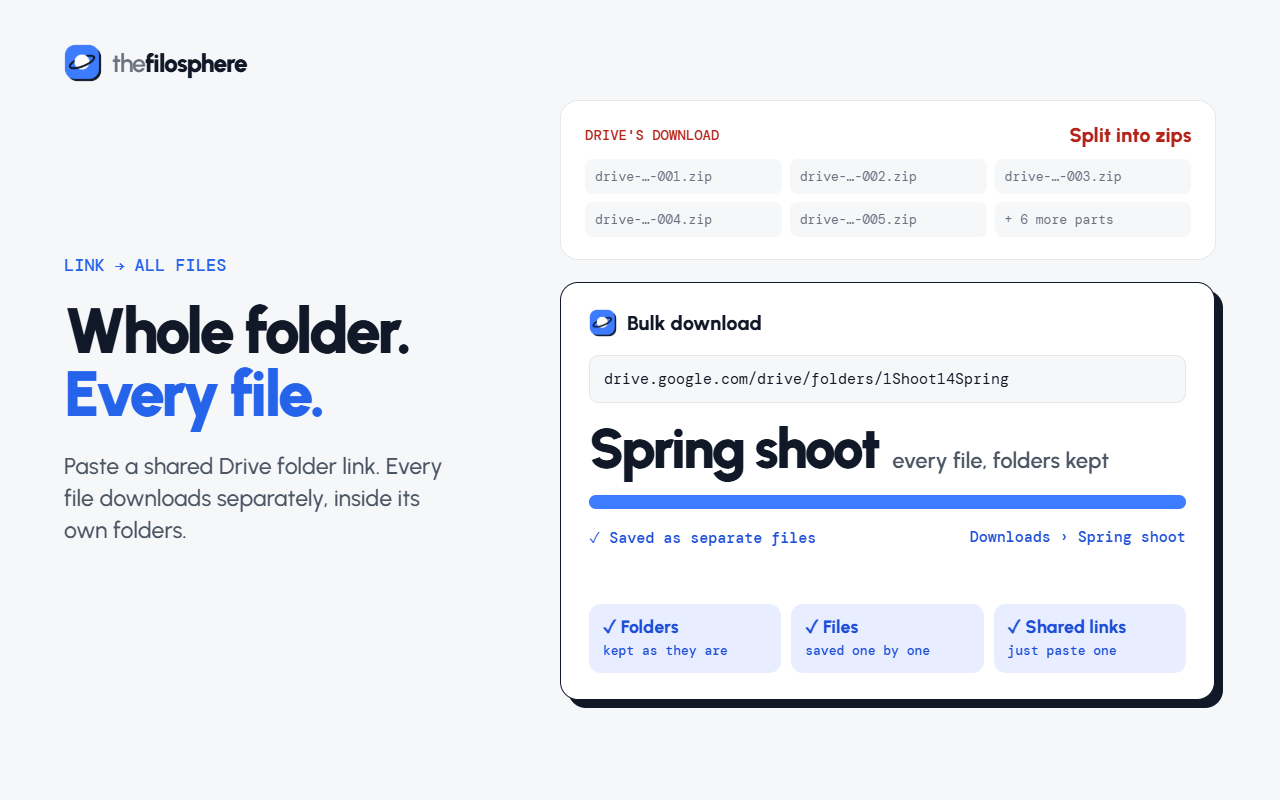
To download a Google Drive folder without zipping, you need a tool that saves each file on its own. That’s what Bulk download in thefilosphere does. It’s a Chrome extension I built for this kind of Drive work. With no zip, there’s no packing step to fail.
- Add thefilosphere to Chrome and click its icon. It opens in a side panel next to Drive.
- In Bulk download, paste the folder’s link. More than one folder? Paste one link per line.
- Check what’s coming. Each link shows its name, file count and total size before anything starts.
- Press Download. Every file is saved to your Downloads folder, inside a folder named after the Drive folder, with its subfolders kept.
When something goes wrong, you don’t start over:
- The connection drops: a half-saved file carries on from where it stopped.
- It stops partway, or you close the panel: open Bulk download and press Continue. Files already saved are skipped.
- A file fails: it’s listed by name, and you retry just that file.
Files go from Google straight to your computer, never through our servers.
Limits:
- The folder must be shared as “Anyone with the link”, or uploaded with thefilosphere.
- Google Docs, Sheets and Slides files are skipped, so download those from Drive.
- It runs in Chrome on a laptop or desktop, and Chrome asks once whether it may save several files: choose Allow.
- Your first 10 runs are free, then it’s $15 once.
There’s more detail on how to download a Google Drive folder without zipping.
Google Drive download failed (no zip involved)
When a Google Drive download says “Failed”, the file stopped partway, either in Chrome or on Google’s side. It’s usually one of these:
- The connection dropped. Check your Wi-Fi, then download it again.
- Your computer ran out of space. Free some up first. A big file needs room for all of it.
- The file hit Google’s download limit. When a shared file is downloaded too many times in a day, Google blocks it for a while. Try again later, or right-click it, choose Make a copy, and download the copy.
- The name is too long. Very long folder or file names can be more than your computer allows. Shorten them, then try again.
In Bulk download, a file that drops carries on by itself, and any other failure is listed by name with its reason, so you retry just that one.
Which fix should I use?
| Your situation | Use |
|---|---|
| A small folder that failed once | Fix 1, then Fix 2 |
| A big folder in your own Drive | Fix 3 |
| A folder someone shared with you by link | Fix 4 |
| Several shared folders, or thousands of photos | Fix 4 |
| One file stopped with “Failed” | Download failed, above |
“I can't believe I can do all the time consuming & manual bulk tasks in just few clicks! I literally unzipped a folder with 200 files straight into my Google Drive without even downloading it. This is seriously soo helpful for those who daily work with Google Drive!”
 Adnan Samol27 Oct 2026 · Chrome Web Store
Try it
Download a whole Drive folder, no zip. First 10 runs free, no card.
Questions
Why is my zip file failing?
Usually the folder is too big, or has too many files, for Drive to pack. Sometimes the browser stops it. Download fewer files at a time, check your browser settings, or download without zipping (Fixes 1, 2 and 4 above).
Why does Google Drive say “Zip failed”?
Drive packs a folder into a zip before downloading it, and that step fails on large folders, folders with thousands of files, files it isn’t allowed to include, or when the browser blocks the download.
Why is Google Drive stuck on “Zipping 1 file”?
The zip is still being built on Google’s side. It says that for whole folders too: ours had 230 files. With many files it can take a very long time, and sometimes it never finishes. Download the folder in smaller parts, or without zipping (Fix 4).
Why does Google Drive split my download into several zips?
Drive splits large downloads into zips of up to 2 GB each. Download every part and unzip them all into the same folder. If a part never arrives, its files are missing and Drive doesn’t warn you. It happened to us twice. Reload the Drive page and download the missing folder on its own.
Can I download a Google Drive folder without zipping?
Yes. Use Drive for desktop for folders in your own Drive, or a tool that downloads each file separately, such as Bulk download in thefilosphere for folders shared by link.
What does “No files could be included” mean?
Drive couldn’t pack any of the files you selected. Most often the owner turned off downloading for viewers, or the files are Google Docs, Sheets or Slides that failed to convert. Ask the owner to allow downloads, or open those files and use File → Download one at a time.
Why does my Google Drive download say “Failed”?
Chrome or Google stopped the file partway, most often because the connection dropped, the computer ran out of space, or the file hit Google’s download limit. Fix that and download it again, or use thefilosphere’s Bulk download, which picks up a dropped file by itself.
Still stuck? There are more answers in Help.