
Folder link → every file
Download a Google Drive folder without zipping.
When you download a big folder, Google Drive zips it first, often splits it into several zips, and sometimes one of them fails. thefilosphere is a Chrome extension that skips the zip: paste the folder’s link and every file is saved to your computer as it is, inside the same folders.

“Usually I don't write reviews for any app especially chrome extensions, but this extension really caught my eye and helped me a lot to manage excel sheets with all the google documents links, just in two clicks I exported my entire list of documents into an excel sheet, special shoutout to the bulk download option as well its really a life saver!”
 Adone Games10 Nov 2026 · Chrome Web Store
How it works
- Paste the folder or file link into the Bulk download tool. More than one? Paste one link per line. Each must be shared as “Anyone with the link”.
- See what’s inside each link: the number of files and the total size.
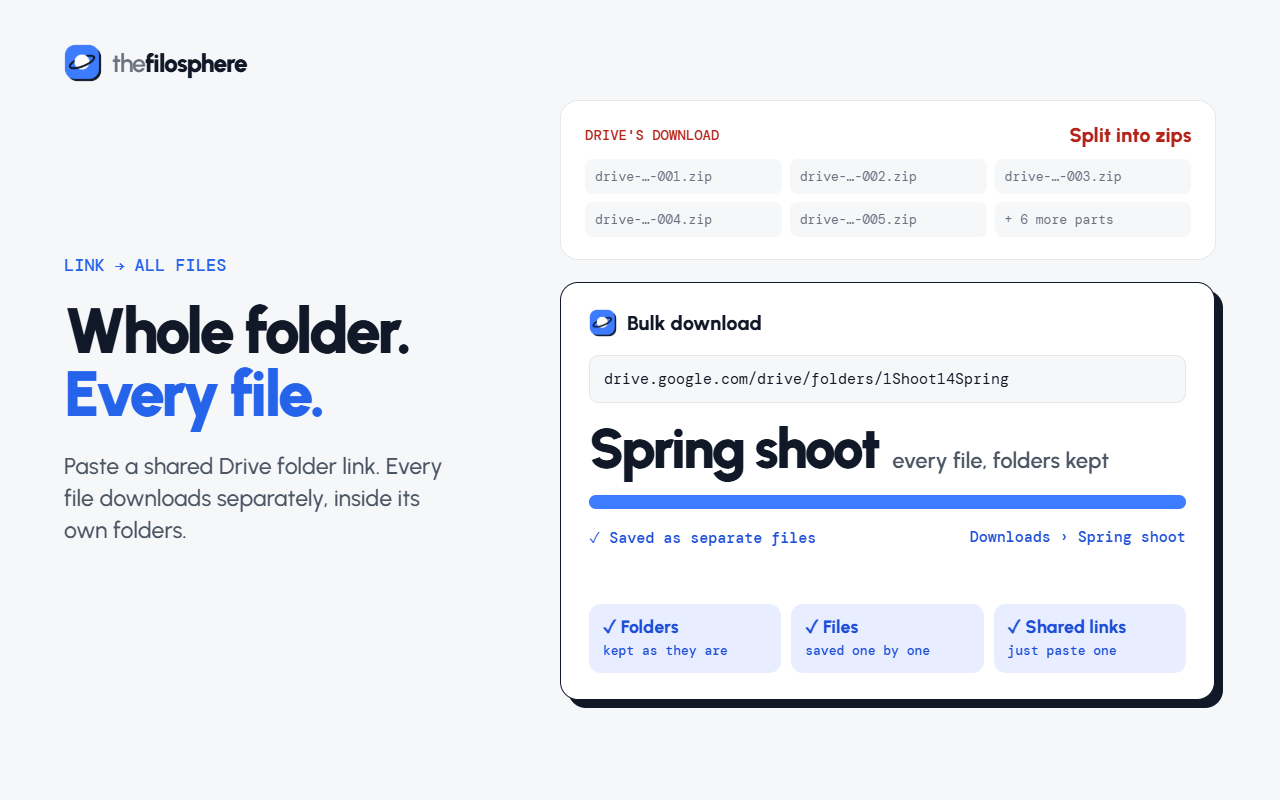
- Press Download. Chrome saves each file to your Downloads folder, in a folder named after the Drive folder, with its subfolders kept.
Why skip the zip
Drive zips a folder on Google’s side before it sends you anything. Big folders get stuck preparing the zip, and come out as several zips.
- No waiting for Drive to “prepare” the download. Files start saving straight away.
- No split archives to find, unzip and merge back together.
- No silent gaps. If a file fails, it is listed by name and you can retry just that file.
- The folders arrive ready to use, exactly as they are in Drive.
Download an entire folder from Google Drive, subfolders included
Drive’s own download packs a folder into zips that you then unpack and piece back together. Here, every file comes down as itself, in the same folders it had in Drive. A folder with 12 subfolders arrives as a folder with 12 subfolders, so when you download a Google folder this way, there’s nothing to unpack afterwards.
Got more than one? Paste several links, one per line, to bulk download Google Drive folders in a single run. Each one gets its own folder in Downloads.
Download multiple files from Google Drive
Paste several file or folder links into Bulk download, one per line. Every file saves on its own, so there’s no zip to unpack.
Files and folders can go in the same list. Before it starts, you see what’s inside each link and can untick any folder you don’t need.
Download all files from a shared Drive folder
Someone sent you a link: a client, a photographer, a colleague. Paste it in and every file in that folder downloads, without asking them to zip anything first. It’s the simplest way to download a shared folder from Google Drive without zipping.
It works when the folder is shared as “Anyone with the link”. If you see “Can’t open this link”, the folder is private. Send the owner this:
Could you set the folder to “Anyone with the link”? In Drive: Share → General access → Anyone with the link.
Download large files and folders from Google Drive
Bulk download handles big files and folders without a zip. Drive’s own download splits a big folder into several zips, and any one of them can fail (why Google Drive’s zip fails). Here:
- You see the file count and total size before it starts. Over 5 GB, it reminds you to check your free space and keep the computer awake.
- A big file carries on from where it stopped if the connection drops. If the whole download stops, press Continue, and files already saved are skipped.
- A file that fails is listed by name, with the reason, so you retry only that one.
Good to know before you start
- The folder must be shared as “Anyone with the link”. A private folder has to be shared that way first.
- Google Docs, Sheets and Slides are skipped, because they are not files that can be downloaded as they are. The result tells you how many were skipped.
- Chrome asks once whether the extension may save several files. Choose Allow.
- It runs in Google Chrome on a laptop or desktop. Keep the side panel open while it runs. If it stops, Continue picks up where it left off.
- On a phone, this won’t work. Send yourself the folder link and open it on a computer.
Other ways, and when they’re better
Skipping the zip isn’t always the right call. Here’s when something else is.
Google Drive for Desktop. Google’s own app. It keeps a copy of your Drive folder on your computer that updates itself. Better when you want the folder kept current, not a one-time copy. You install the app and sign in.
rclone. A free tool you run by typing commands. Better for huge folders or a copy that runs on a schedule. Skip it unless typing commands is fine by you.
Drive’s own Download. Right-click the folder, then Download. Fine for a small folder: one zip, unzip it, done.
thefilosphere. Better for a shared folder someone sent you, or a big one you need once. The folder has to be set to “Anyone with the link”, and it runs in Chrome on a computer.
Questions
Can I download a folder from Google Drive without zipping it?
Google Drive itself always zips a folder download. thefilosphere downloads the files one by one instead and saves them into the same folder structure on your computer, so there is no zip to wait for or unpack.
Why does my Google Drive zip download fail?
Drive compresses the folder on its side before sending it. With large folders that step is slow, the result is split into parts, and a part can fail or leave files out. Downloading the files separately avoids that step.
Where do the files go?
Into your normal Downloads folder, inside a folder with the same name as the Drive folder. Subfolders are kept.
Does it work with a shared folder link someone sent me?
Yes, as long as the folder is shared as “Anyone with the link”. Paste the link and it lists and downloads every file in it.
Is there an online Google Drive folder downloader?
Not a website you upload to, and that’s on purpose. thefilosphere is a Chrome extension: it runs in your browser, and files go from Google straight to your computer, never through a server of ours. Paste the folder link into its side panel and it downloads every file with the folders kept.
How do I download a large folder from Google Drive?
Skip the zip. Drive splits big folders into several zips that can fail. In thefilosphere’s Bulk download, paste the folder link, check the size it shows, and press Download. Files are saved one by one, and if it stops, Continue picks up where it left off.
How do I download multiple files from Google Drive?
In Drive, select them and press Download, but Drive zips them first. To skip the zip, paste their links into thefilosphere’s Bulk download, one per line. Every file saves on its own.
How do I download large files from Google Drive?
Use a download that can pick up where it left off. In thefilosphere’s Bulk download, a big file carries on if the connection drops, and Continue picks up after a stop. Any file that fails is listed by name, so you retry just that one.
Can I download a Google Drive folder from a link?
Yes, if the folder is shared as “Anyone with the link”. Paste the link into Bulk download. It shows the files and their total size, then saves them all into your Downloads folder. You can paste several links at once, one per line.
If the download stops halfway, do I start from scratch?
No. Press Continue and it picks up where it stopped: files already saved are skipped, and a big file carries on from where the connection dropped.
Do I need a Google account to download a shared folder?
You sign in to thefilosphere with a Google account once, the first time you open it. You don’t need the owner to add you: if the folder is set to “Anyone with the link”, the link is enough. Files go from Google straight to your computer, never through a server of ours.